





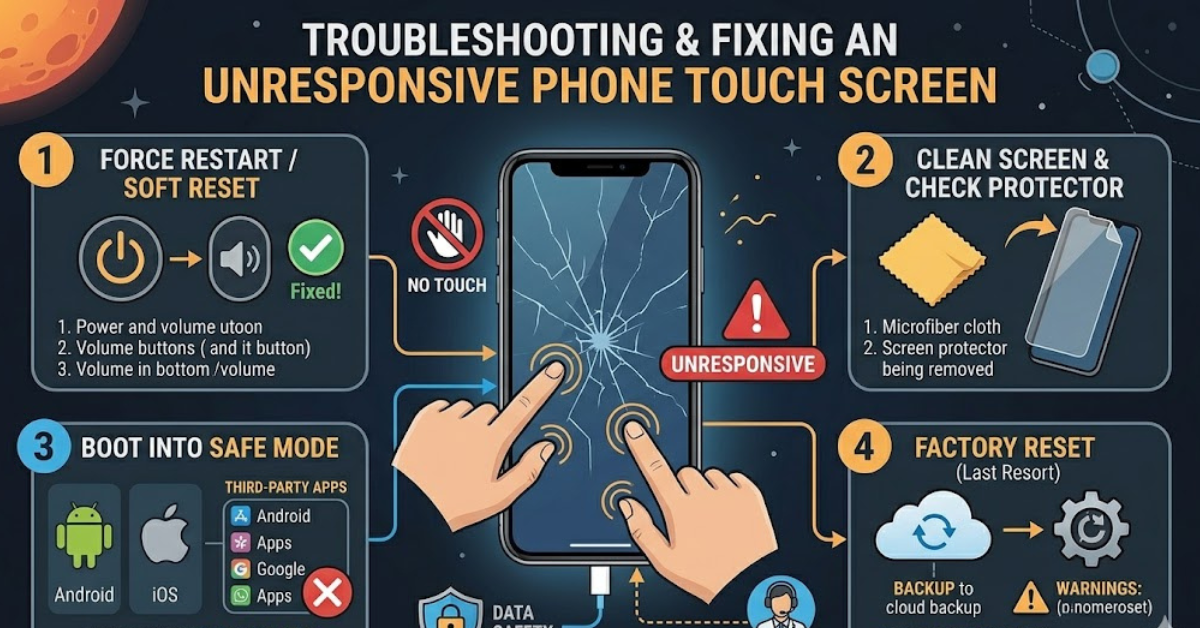

There’s nothing more frustrating than tapping your phone screen and getting no response. If you’re dealing with this issue, you’re probably searching for how to fix phone screen unresponsive touch quickly and safely. The good news is that most touch problems are fixable without expensive repairs. In this guide, we’ll walk through the common causes and step-by-step solutions to get your phone working again.
Why Is Your Phone Screen Not Responding?
Before fixing the issue, it helps to understand what might be causing it.
Common reasons include:
- Software glitches or bugs
- Dirty or wet screen
- Faulty screen protector
- Low memory or system lag
- Physical damage or internal hardware issues
Identifying the cause makes it easier to apply the right fix.
Quick Fixes for Unresponsive Touch Screen
Start with these simple solutions. They often solve the problem in minutes.
1. Restart Your Phone
A restart clears temporary glitches.
- Press and hold the power button
- Select restart or reboot
- Wait for the phone to turn back on
This is the easiest and most effective first step.
2. Clean the Screen Properly
Dirt, oil, or moisture can interfere with touch sensitivity.
- Use a soft microfiber cloth
- Avoid harsh chemicals
- Make sure your hands are dry
Even a small smudge can affect responsiveness.
3. Remove Screen Protector or Case
Sometimes accessories cause touch issues.
- Take off the screen protector
- Remove bulky cases pressing on the edges
- Test the screen again
Low-quality protectors are a common culprit.
Software Troubleshooting Steps
If basic fixes don’t work, try these deeper solutions.
4. Update Your Phone Software
Outdated software can cause bugs.
- Go to settings
- Check for system updates
- Install the latest version
Updates often include fixes for touch-related issues.
5. Free Up Storage and Memory
A slow phone can appear unresponsive.
- Close unused apps
- Delete unnecessary files
- Restart after cleanup
This helps improve overall performance.
6. Boot in Safe Mode
Safe mode disables third-party apps.
- Restart your phone in safe mode
- Test if the screen works normally
If it does, an app is likely causing the problem.
Advanced Fixes to Try
If the issue persists, move to more advanced options.
7. Calibrate the Touch Screen
Some phones allow touch calibration through settings or apps.
- Follow on-screen instructions
- Adjust sensitivity if available
This can improve accuracy and response.
8. Factory Reset (Last Resort)
A factory reset removes all data and resets the system.
- Back up your data
- Go to settings
- Select reset or factory reset
- Confirm and wait
Use this only if other solutions fail.
When It’s a Hardware Problem
Not all issues are software-related.
Signs of hardware damage:
- Cracked or broken screen
- Touch works only in certain areas
- Screen flickering or ghost touches
In these cases, professional repair or screen replacement may be necessary.
How to Prevent Touch Screen Issues
Prevention is always better than repair.
- Use a high-quality screen protector
- Keep your phone clean and dry
- Avoid dropping or applying pressure
- Regularly update your software
These habits can extend your phone’s lifespan.
FAQs
Why is my phone screen not responding to touch?
It could be due to software glitches, dirt, a faulty screen protector, or hardware damage.
Can I fix an unresponsive screen myself?
Yes, many issues can be fixed with simple steps like restarting, cleaning, or updating software.
Does water damage affect touch screens?
Yes, moisture can interfere with touch sensitivity and may cause permanent damage.
When should I replace my phone screen?
If there’s physical damage or touch doesn’t work after all fixes, replacement may be needed.
Will a factory reset fix touch issues?
It can fix software-related problems, but it won’t help if the issue is hardware-related.
Conclusion
Dealing with an unresponsive screen can be frustrating, but knowing how to fix phone screen unresponsive touch gives you a clear path forward. Start with simple solutions like restarting and cleaning, then move to software fixes if needed. In many cases, you can solve the issue without professional help.
If none of the steps work, it may be time to consider repair options. Either way, acting quickly can prevent the problem from getting worse and keep your phone running smoothly.